FAQ
How MatchNight works
Short answers, and a video where there is one. Organisers run the competition; players just say when they're in, turn up and put the scores in.
1 · Organisers
Set up your competition
Sign in, tap Start a competition and the app walks you through it step by step: a league (a season, one night a week, with a table) or a Crown night (a one-night league where partners change every round and someone is crowned at the end).
- Name it and pick the sport.
- Choose your dates and first nights.
- Set the times you play.
- Choose how you play — pairs random, by form, or picked — and the scoring.
- Add your players' names (paste a WhatsApp list; numbering is stripped).
- Share the link. The app asks who's in, makes the draw and keeps the table.
Can I change things later?
Yes — everything lives in Settings, and each night can be changed on its own page before it's drawn.
Want it written down in full?
The host guide covers every step in more detail.
Step by step, with screenshotsShow ▾Hide ▴
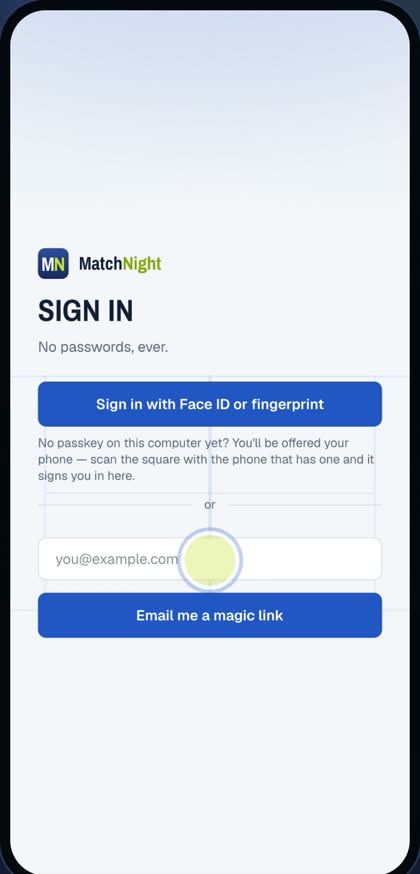
1 · Sign in with your email
Go to matchnight.games, and sign in with your email. Tap the link we send you. No password needed.
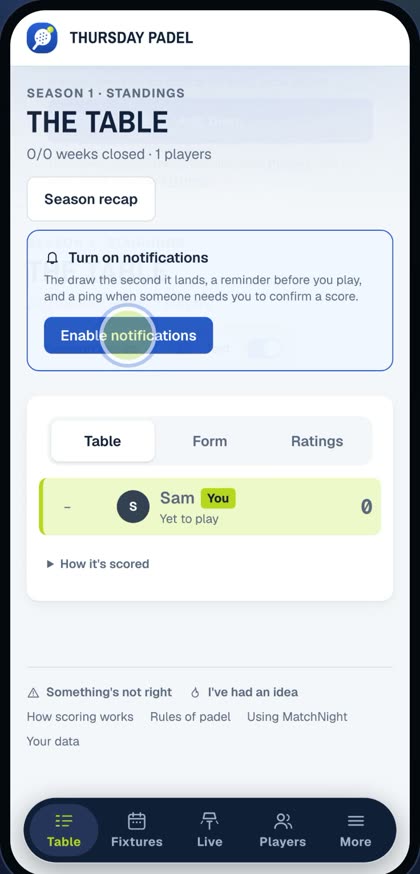
2 · Privacy + notifications on
In Your details, choose what you share, and turn notifications on.
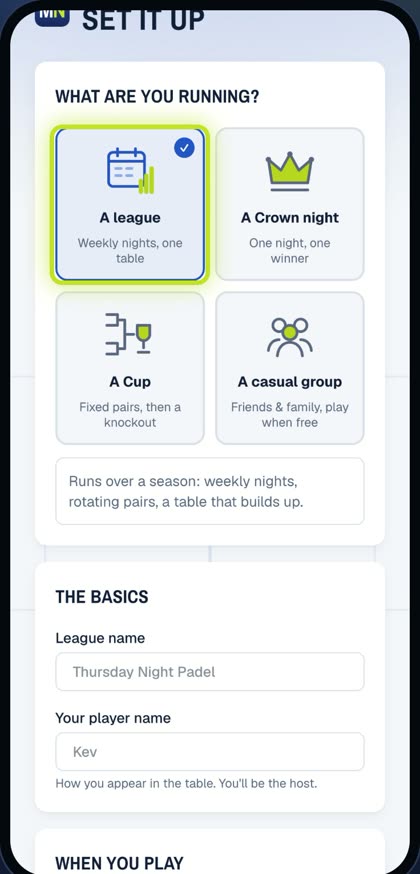
3 · Pick your game
Tap New, and pick what you're running: a league, a Crown night, a Cup, or a casual group.
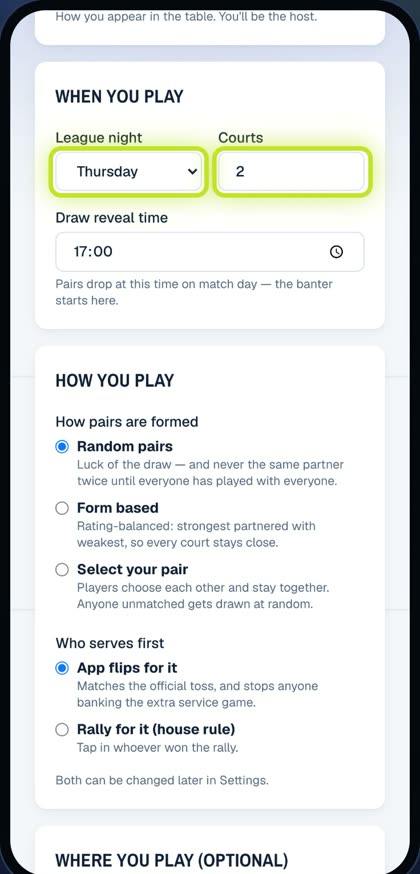
4 · Name, night, courts
Give it a name, then pick your night and courts.
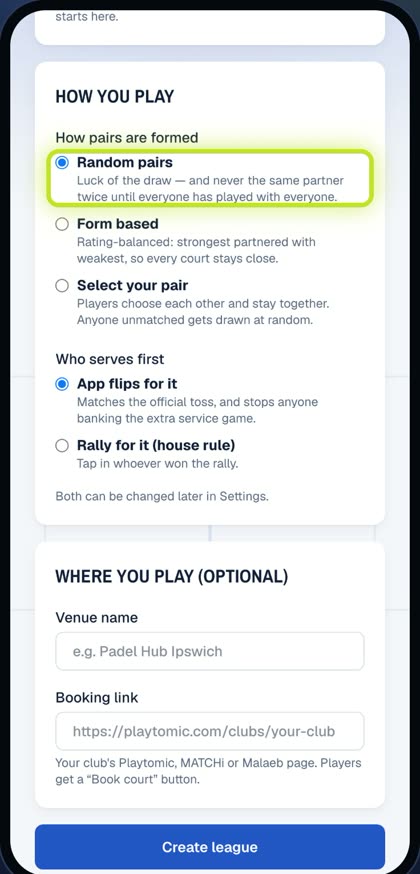
5 · How you play
Next, how you play. Random pairs, pairs balanced on form, or players choose their partner. Then who serves first, and tap Create.
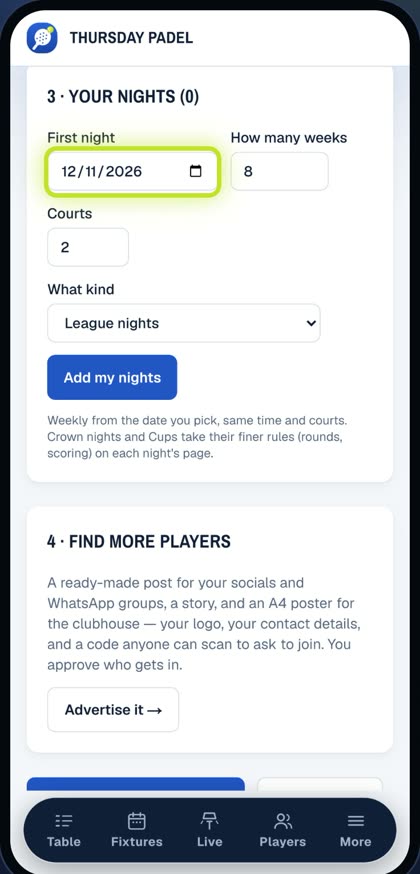
6 · Dates: your first nights
Now add your nights. Pick the first date, how many weeks, and your courts. They go straight into your fixtures.
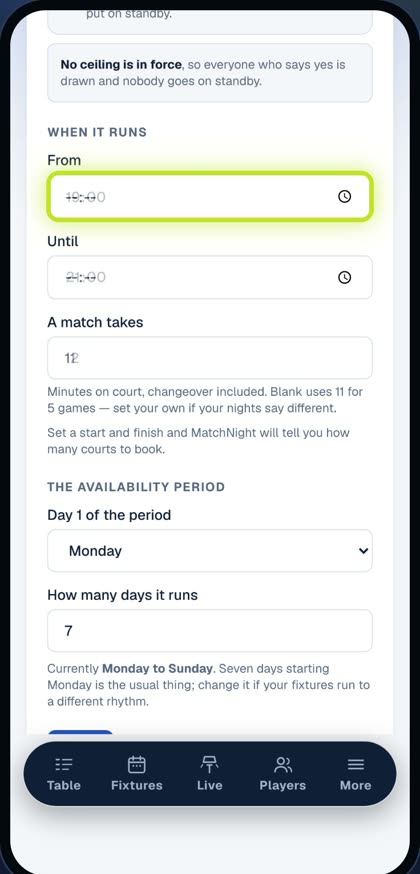
7 · Times: start, finish, match
In Settings, set your times: when play starts and finishes, and how long a match takes. MatchNight works out the courts you need.
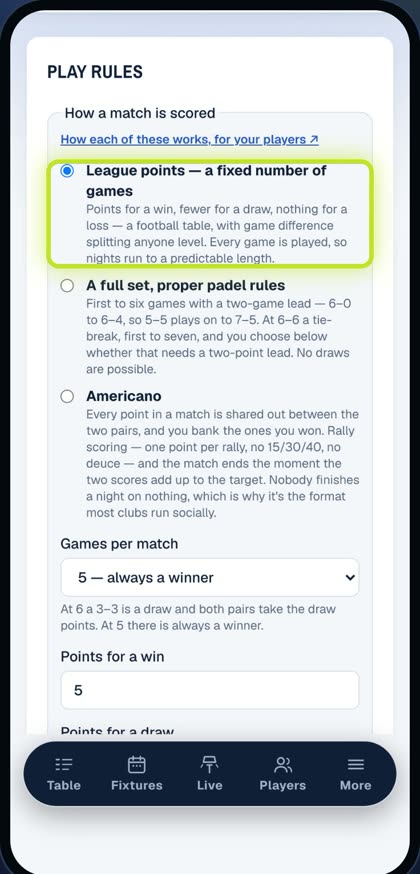
8 · Scoring
Then choose your scoring: a set number of games, a full set, or Americano, first to twenty-four points.
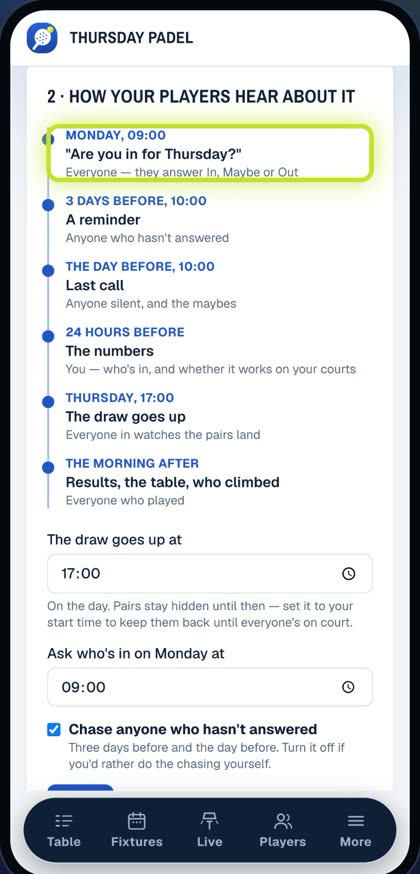
9 · Who's in + the draw
Every Monday, MatchNight asks who's in, chases anyone who hasn't answered, and puts up the draw at the time you choose.
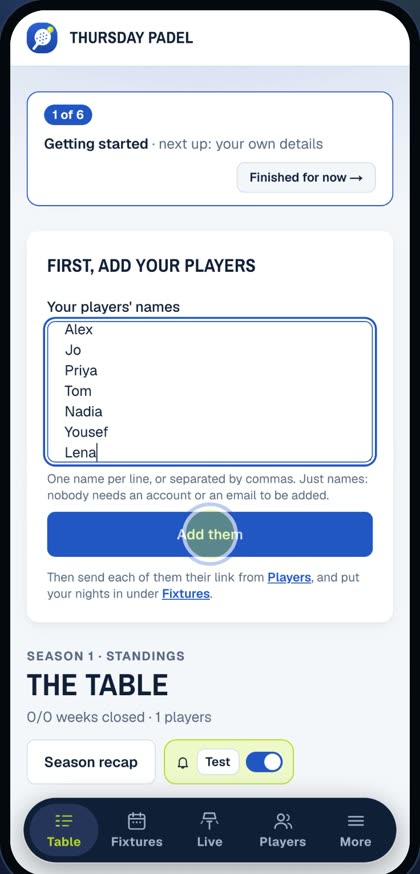
10 · Send the link on WhatsApp
Now send the invite link to your WhatsApp group. Players tap it, join in seconds, and say if they're in.
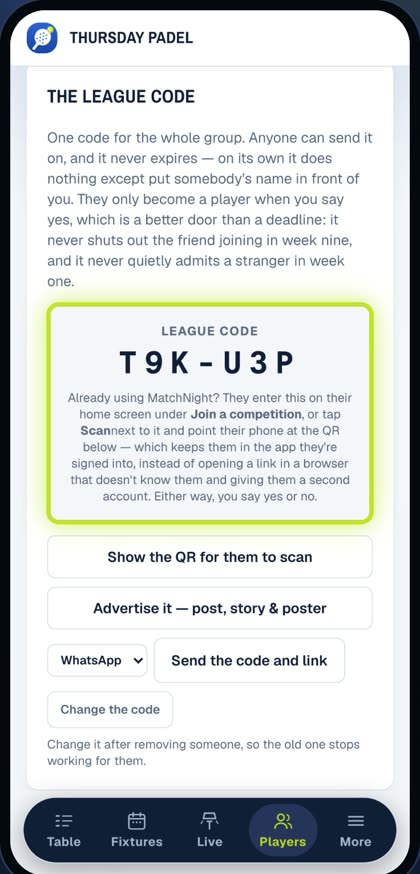
11 · Scan the QR, or copy the code
At the club? In Players, tap Show the QR, and they scan it straight from your screen. Or copy the code and link, and paste it anywhere.
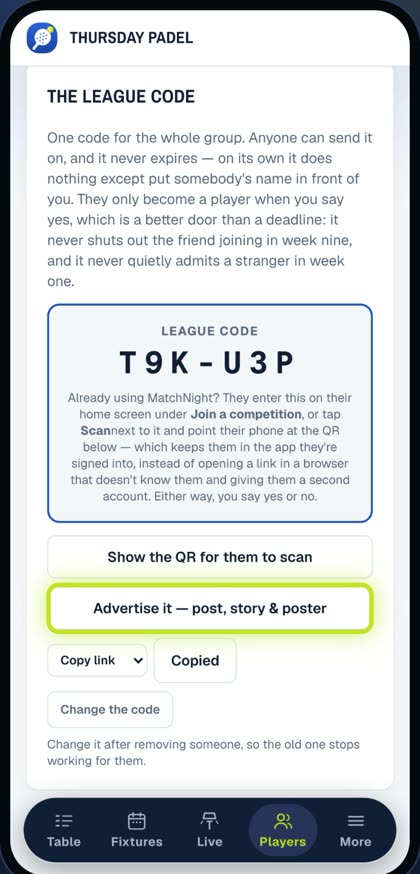
12 · Advertise your league
Want more players? Tap Advertise it, for a ready-made post, a story, or an A4 poster for the clubhouse, all carrying your QR code.
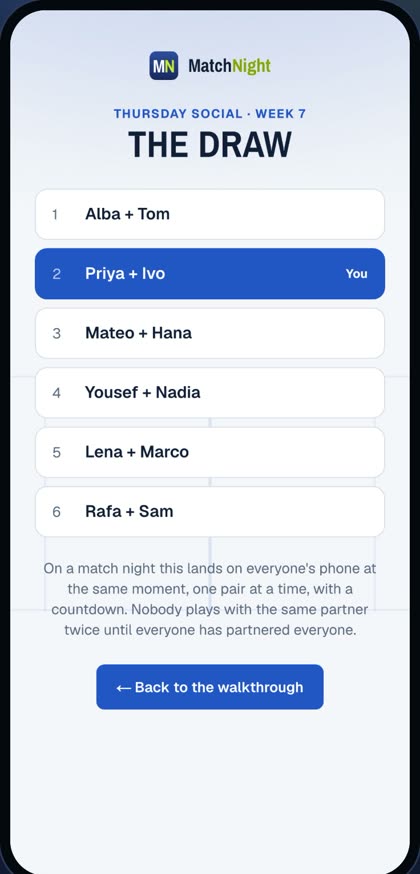
MatchNight does the rest
MatchNight does the rest: the draw, the scores, and the table.
2 · Organisers
Advertise it and get players in
Getting people in is the organiser's job — players don't get codes, QR codes or posters, so there's only ever one front door. You have three ways in:
1. One link for the whole WhatsApp group
Players → The league code gives you a group link, a six-character code and a QR. Drop the link in your group chat: anyone who taps it lands on your competition and either claims their name from your list or joins fresh.
2. A personal link for one player
On Players, open someone's Manageand send them their own link. It signs them straight in as themselves — best for anyone who gets stuck, or who's lost their phone.
3. A poster for social media or the club wall
Advertise (on the Mac or desktop tab bar, or Settings → Share the app on a phone) makes a ready-made post, a story and an A4 poster with your QR on it. Save it, post it, print it.
Collected names in the group chat instead?
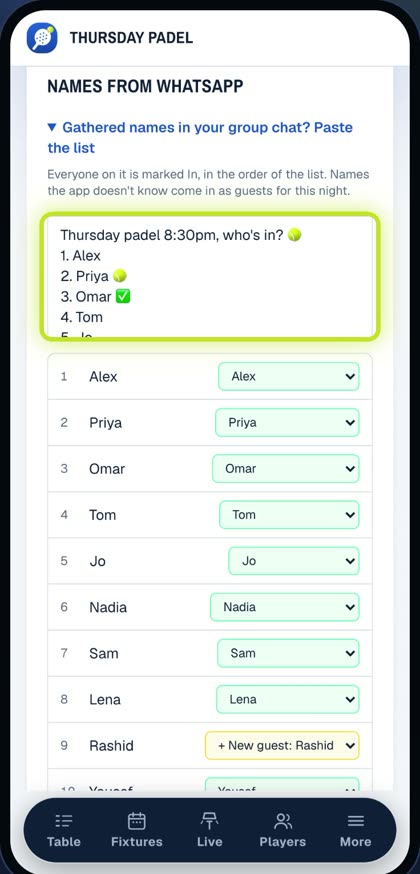
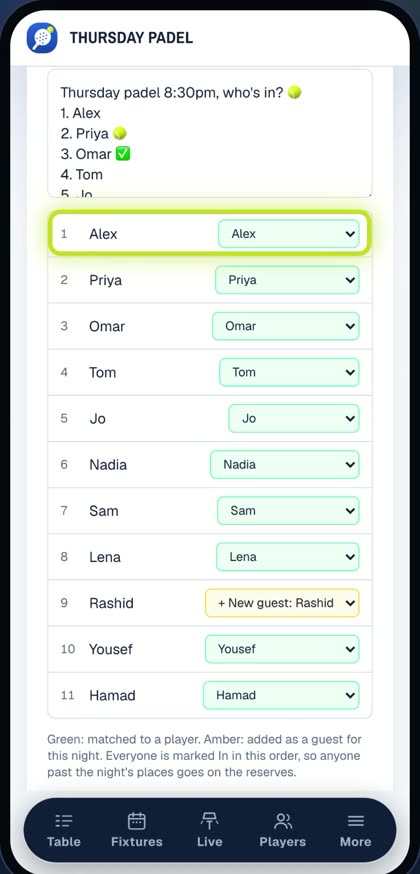
On the night's page, open Names from WhatsApp and paste the list. Numbering, ticks and emoji are ignored; each name is matched to a player (you check the matches) and marked In in list order, so anyone past your places becomes a numbered reserve. Names the app doesn't know come in as guests.
Who keeps letting you down?
Only you can see it: a player who has said yes and then not come shows missed 2 of 5 on the register and the Players list — no-shows, drops on the day and places lost to the 2-hour check, over their last five nights.
Tip: post the group link and the poster together. People who see it on Instagram scan the QR; people in the chat just tap.
Step by step, with screenshotsShow ▾Hide ▴
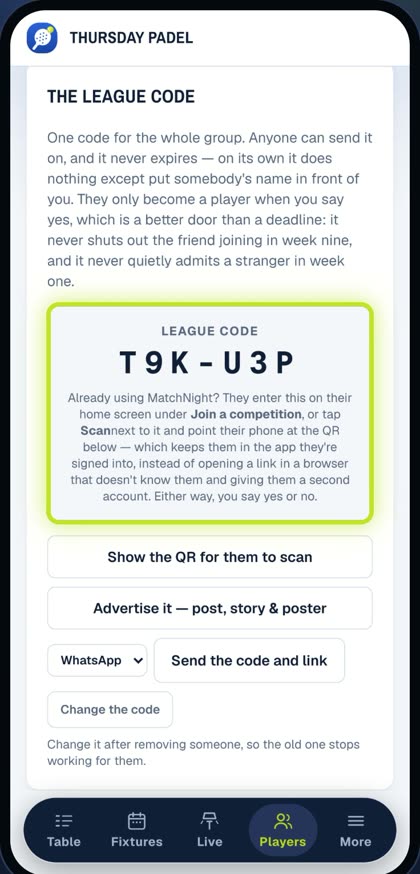
1 · One link for the group
Open Players, then The league code. You get one link, a six-character code, and a QR code, all for the whole group. Tap Copy link, and drop it in your WhatsApp group. Anyone who taps it claims their name, or joins fresh.
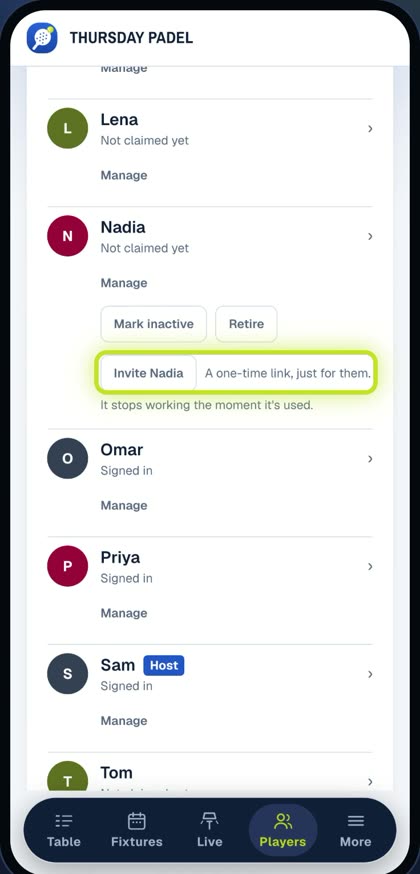
2 · A link for one player
Someone stuck, or on a new phone? Open their name, tap Manage, and send them their own link. It signs them straight in.
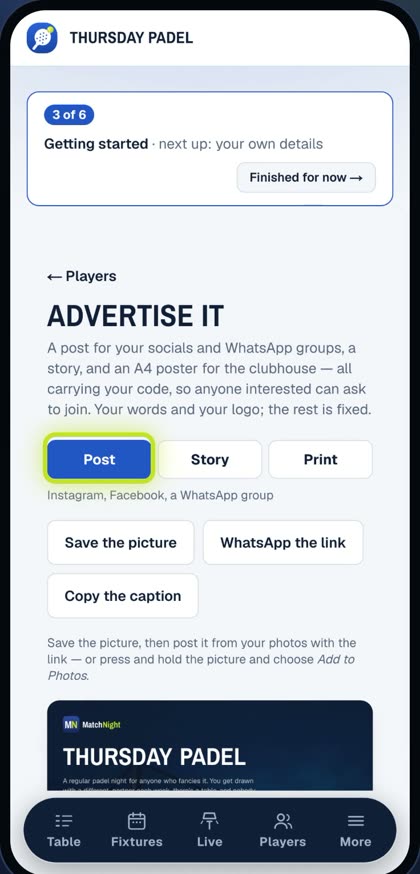
3 · Posters for social media
Tap Advertise for a ready-made post, a story, and an A4 poster, each with your QR code. Save it, post it, print it.
4 · Names from WhatsApp
Collected names in the group chat instead? On the night's page, open Names from WhatsApp, and paste the list. Every name is matched to a player. Check the matches, then tap Mark them in. Names the app doesn't know come in as guests.
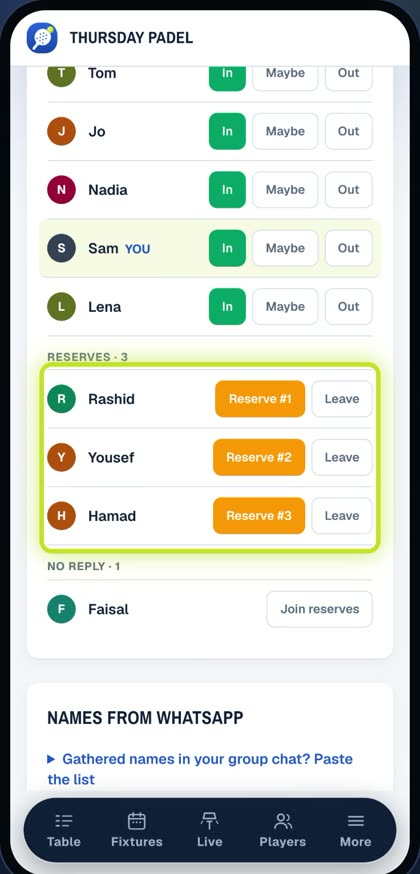
Reserves, sorted
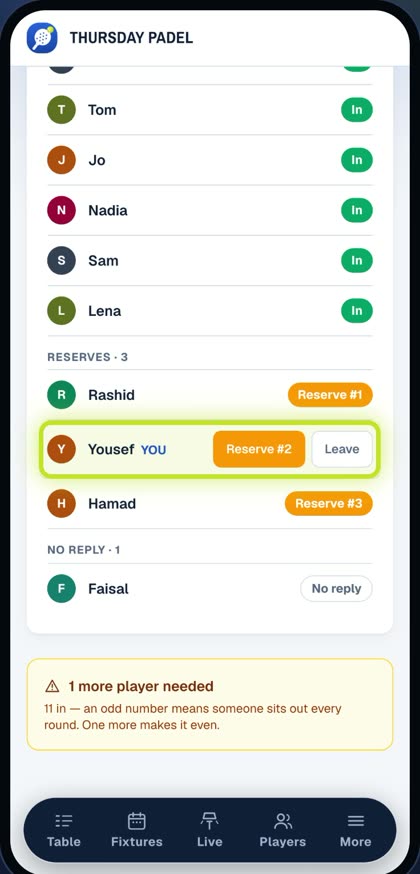
They're marked in, in the order of your list. Anyone past your places goes on the reserves, and moves up automatically if someone drops out.
3 · Organisers
Which scoring suits you
Games, sets, Americano points or a timed round — and for a league, whether the table ranks on league points, games won or plus/minus. The video walks through which suits your group; the scoring page has it all written down.
4 · Organisers
Changes on the night
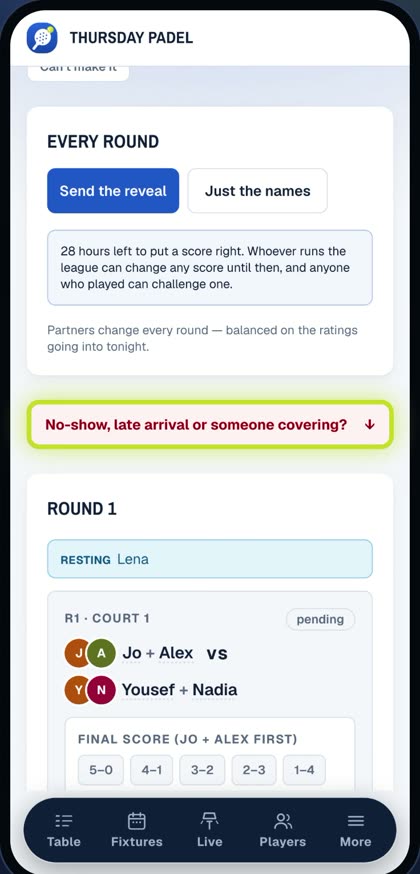
People drop out late, or don't show. The night page has a red No-show, late arrival or someone covering? link above the rounds that takes you to every fix.
Someone's not coming
On the register, tap Not coming next to their name. They come out of the draw and stop showing as resting.
Someone didn't turn up, or went home sick mid-night
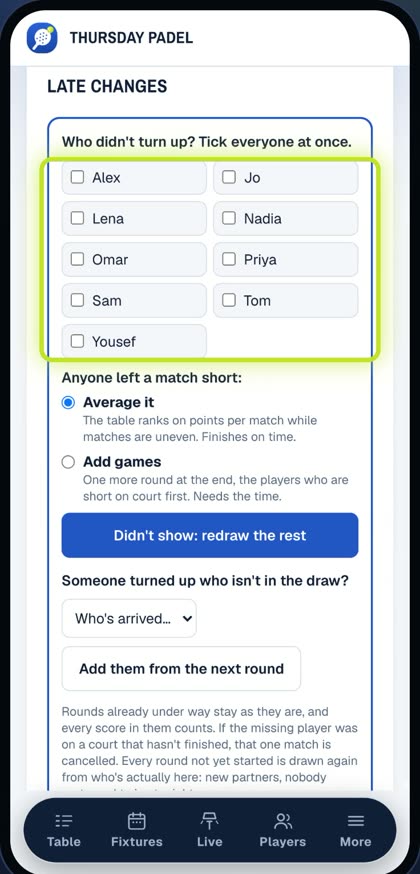
Tick them under Late changes. Their unfinished matches are cancelled and every round that hasn't started is redrawn from who's left, on as many courts as they fill. Then choose how to keep it fair:
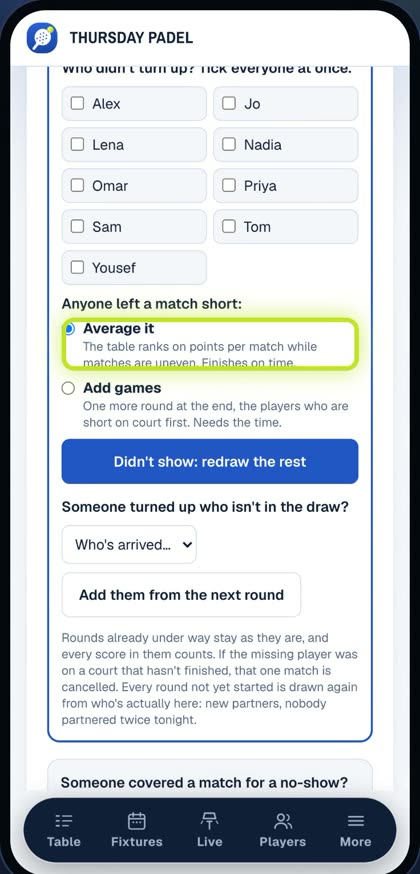
- Average it — stay inside your court time. Anyone who played fewer matches is ranked on points per match.
- Add games — add a catch-up round so everyone ends level on matches. Only if you have the court time.
Someone turned up late and wants to play
Tick them in on the register. On a round-by-round night they're added from the next round; otherwise use Late changes and choose average or add games, as above.
Someone covered a match for a missing player
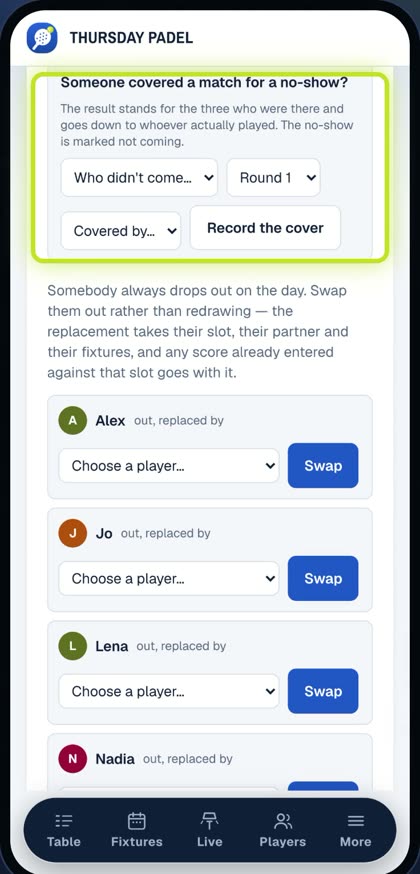
Use Someone covered a match? — pick the round, who was missing and who stood in. The result counts for the person who actually played.
The end-of-round-1 cut-off
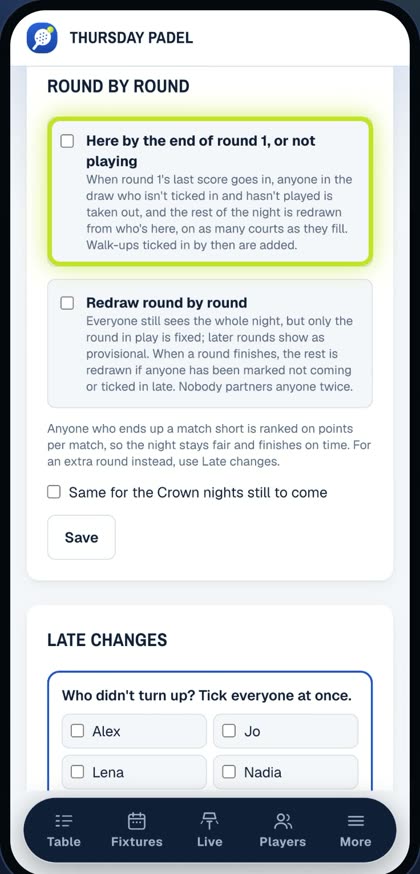
For groups where people say yes and don't appear. Turn on Cut-off after round 1 in the night's Round by roundpanel (Crown nights with rotating partners). When round 1 finishes, anyone in the draw who isn't ticked in and hasn't played is taken out, and the rest of the night is redrawn from who's there. Make sure everyone present is ticked in on the register before round 1 ends.
Round by round
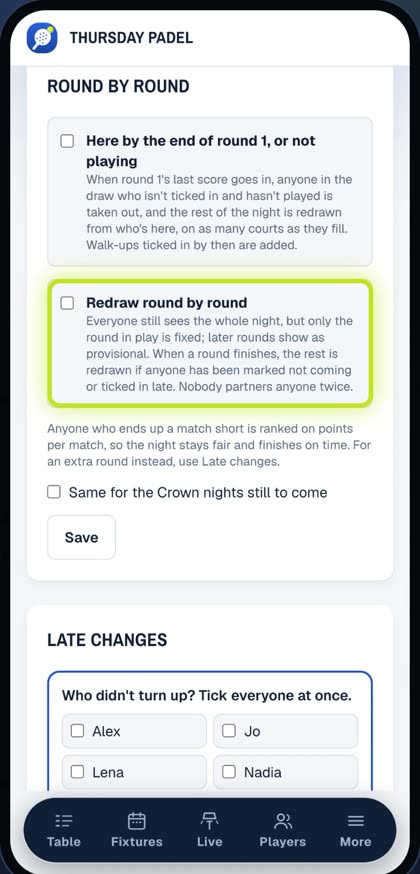
Turn on Round by round in the same panel and only the round in play is fixed; later rounds are marked provisional and redrawn whenever someone drops out or arrives. Late arrivals are welcome all night.
The 2-hour check
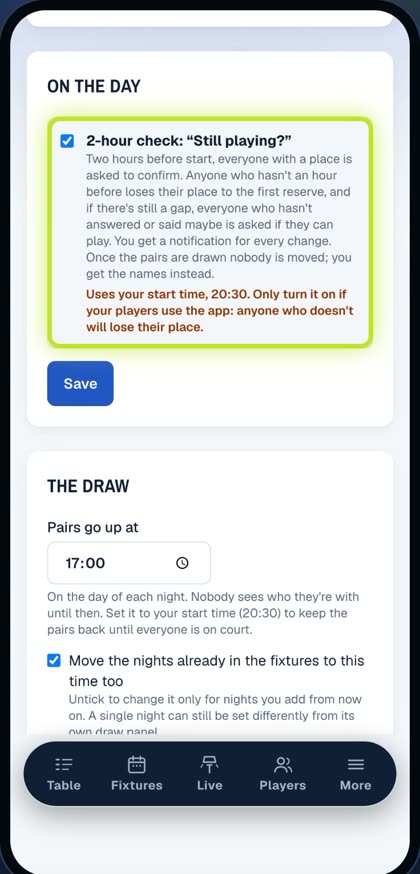
Settings → On the day. Two hours before start, everyone with a place is asked to confirm. Anyone silent an hour before start loses their place to the first reserve, and you get a summary of every change.
The round clock
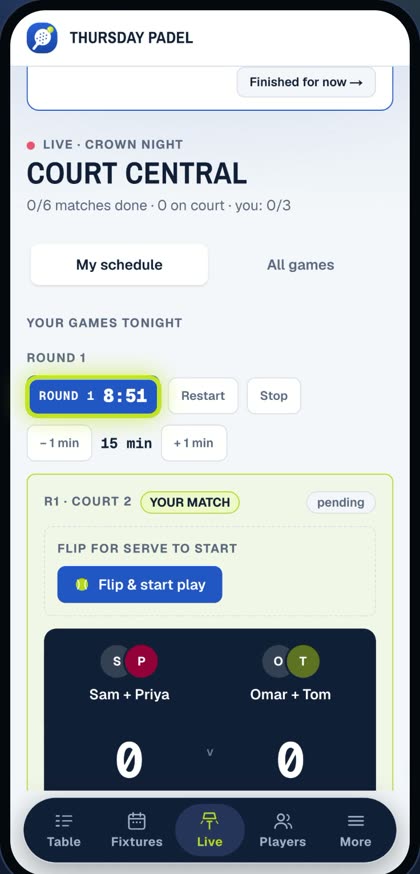
Start it from the night page; use −1 min / +1 min to speed up or slow down a night that's running over.
Step by step, with screenshotsShow ▾Hide ▴
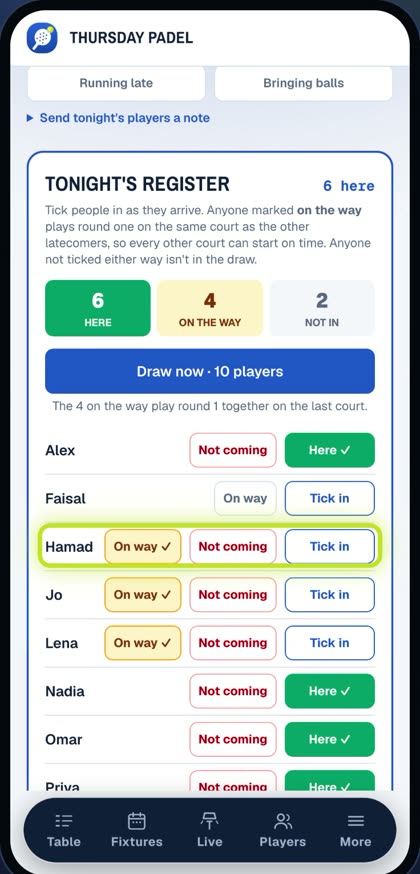
1 · Not coming
On the register, tap Not coming. They're out of the draw, and off the resting list. The list stays in alphabetical order, so you can check it against your own.
2 · No-shows
Someone didn't turn up? Tap the red bar: No-show, late arrival or someone covering. Tick everyone who's missing. Rounds that haven't started are redrawn from who's left, on as many courts as they fill.
3 · Keep it fair
Then choose. Average it, to finish on time: everyone's ranked on points per match. Or add games, if you have the court time.
4 · Someone covered
Someone stood in for a missing player? Record the cover, and the result goes to the person who actually played.
5 · The round 1 cut-off
For groups where yes doesn't always mean yes, turn on the round one cut-off. When round one ends, anyone not ticked in is out, and the night is redrawn.
6 · Round by round
Or go round by round. Only the round in play is fixed, so late arrivals join the next round.
7 · The 2-hour check
In Settings, turn on the two-hour check. Anyone who doesn't confirm loses their place to a reserve, and you get a summary.
8 · The round clock
And if the night's running late, take a minute off every round.
5 · Organisers
Putting it on the big screen
The live table, who's on court and every score as it's entered, on the club TV. Your phone stays free for scores all night.
The screen must be online the whole night. If the venue's Wi-Fi is patchy, run it from a phone hotspot — if the connection drops, the board stops updating until it's back.
- On the TV's browser (a smart TV, a laptop on HDMI or a Fire Stick), open matchnight.games/tv. A code appears.
- On your phone: Live on the night (or Settings) → Put it on the TV.
- Type the code and tap Pair a screen. The TV becomes your board.
No smart TV?
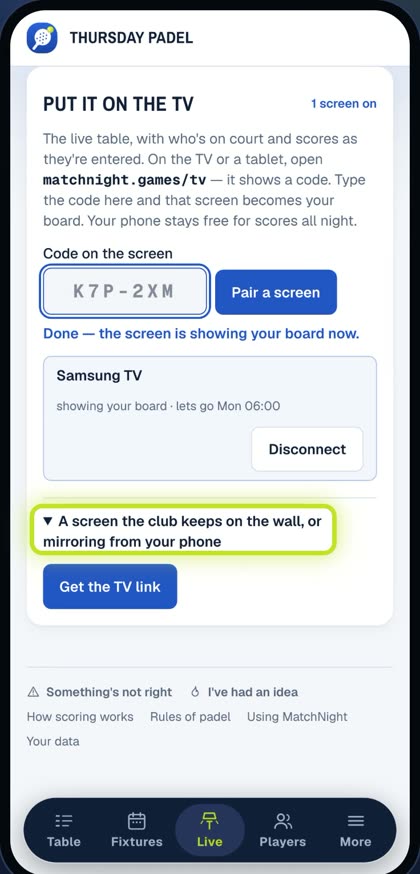
Mirror your phone (iPhone: Control Centre → Screen Mirroring, needs an Apple TV or AirPlay TV; Android: Chrome ⋮ → Cast, needs a Chromecast or Google TV). It works, but it ties your phone up — pairing a code is better.
Turning it off
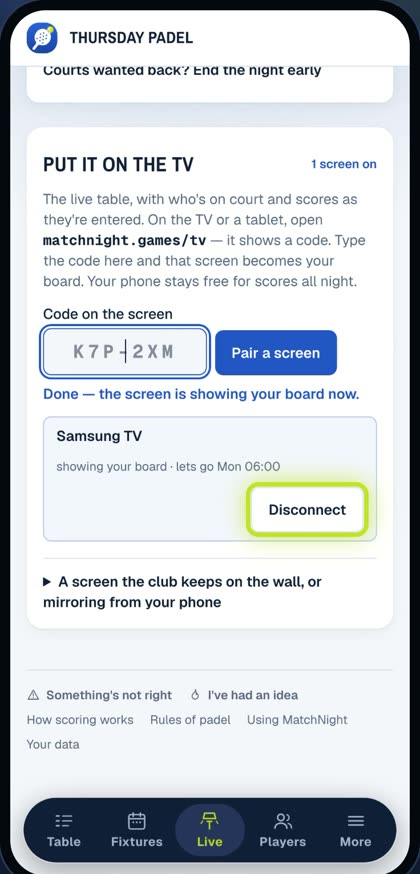
The screen lets go by itself the next morning, or tap Disconnect under Put it on the TV.
Step by step, with screenshotsShow ▾Hide ▴
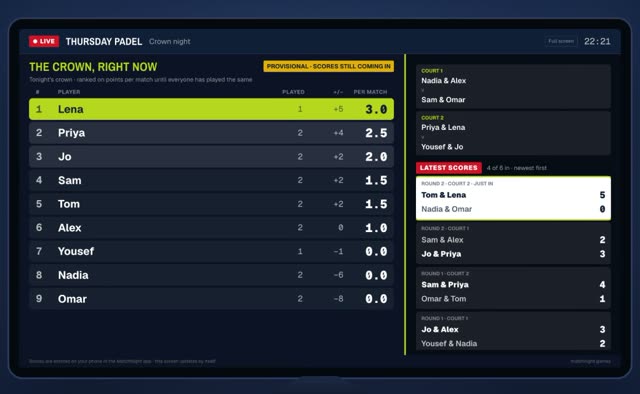
What you need
First, the screen has to be online, all night. A smart TV, a laptop on HDMI, or a Fire Stick all work. Venue Wi-Fi patchy? Run it from a phone hotspot. If the connection drops, the board stops updating until it's back.
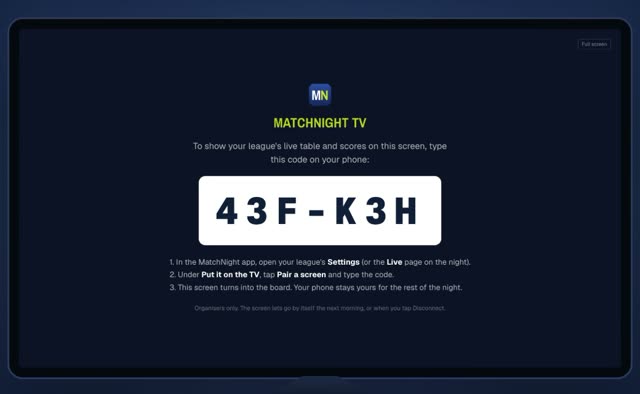
1 · On the TV
On the screen's browser, go to matchnight.games/tv. A code appears.
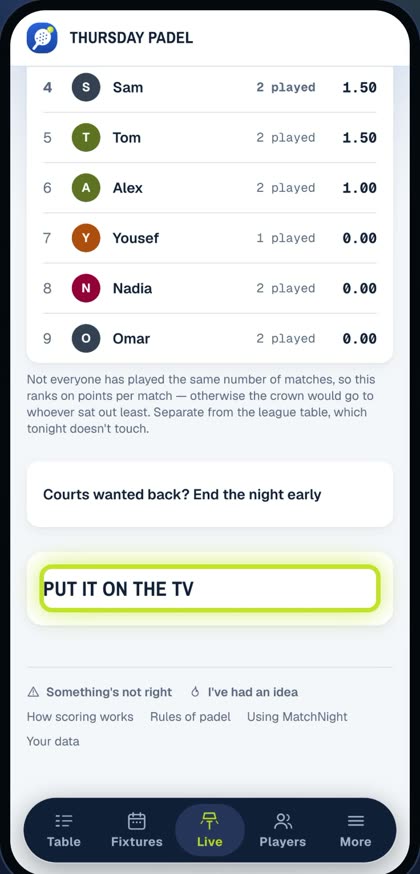
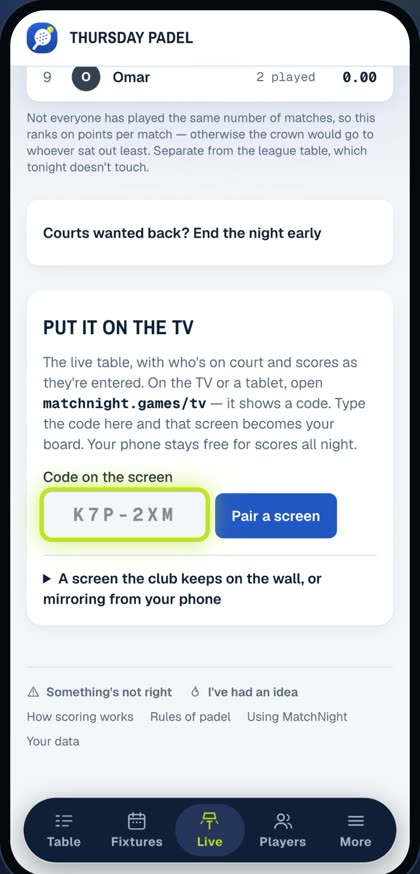
2 · On your phone
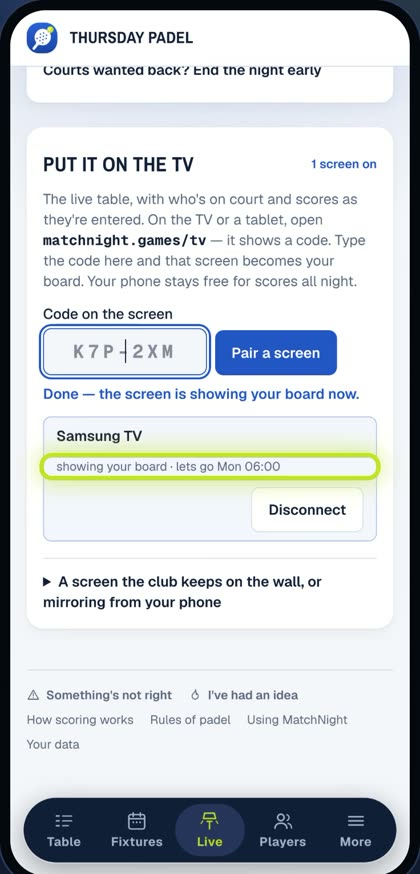
On your phone, open Live on the night, or Settings. Scroll down to Put it on the TV, and open it. Type the code from the TV, and tap Pair a screen.
3 · The board
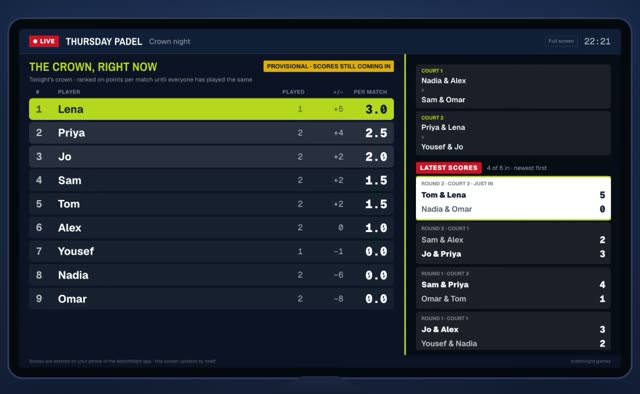
Done. The TV turns into your board, and your phone stays free for scores. Scores land the moment they're entered, alongside who's on court now and the latest results.
Other ways
No smart TV? You can mirror your phone instead, but that ties your phone up all night. Pairing a code is better.
When you're done
The screen lets go by itself the next morning. Or tap Disconnect when you're done.
6 · Players
Join a competition
Your organiser sends you a way in — any one of these works:
- A WhatsApp link — tap it.
- A code — on the home screen tap Join a competition and type the six characters.
- A QR code — point your phone camera at it.
My name's already on the list
Tap it to claim it — your past results and rating come with you. If someone else has already claimed it, ask the organiser to sort it.
My name isn't there
Join fresh with your own name. The organiser approves you and you're in.
Do I need to download anything?
No. It runs in your browser. Add it to your home screen if you like — it then behaves like an app, notifications included.
Step by step, with screenshotsShow ▾Hide ▴
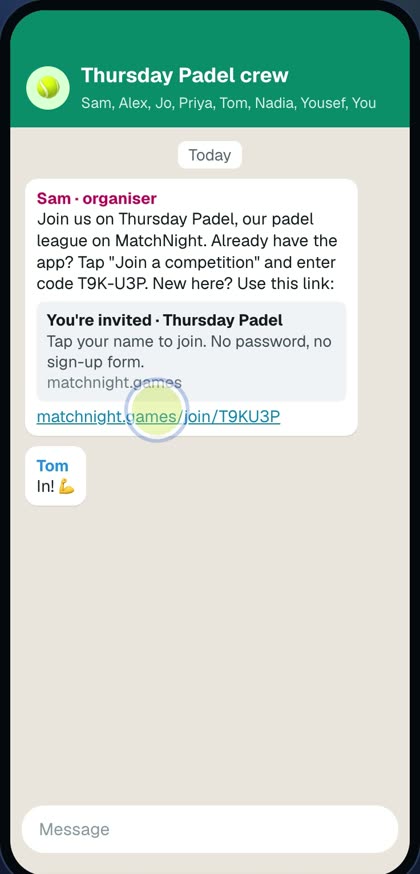
1 · Tap the link
Your organiser shares a link in the WhatsApp group. Tap it. There's no password, and no sign-up form.
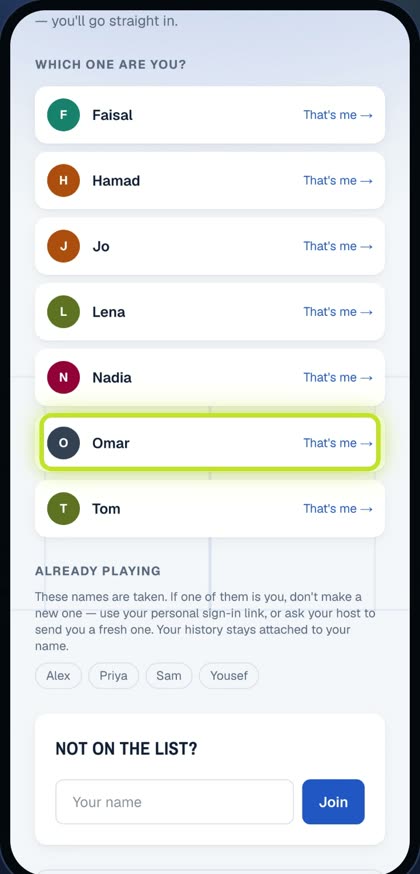
2 · Claim your name
Find your name on the list, and tap That's me.
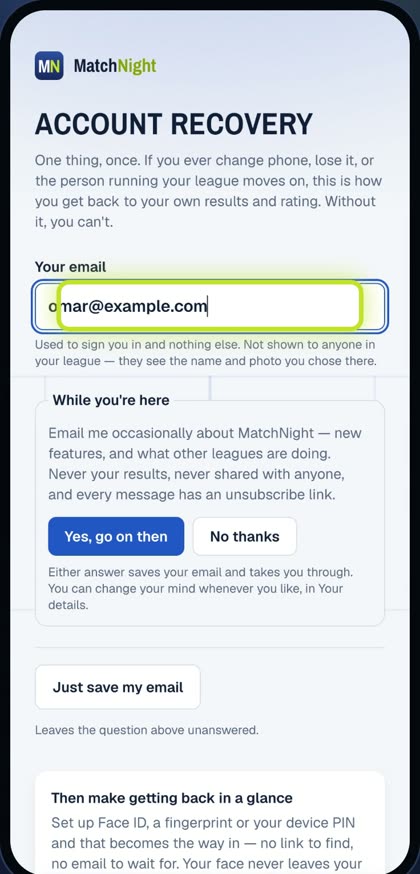
3 · Add your email
Add your email once, so you can always get back in, even on a new phone.
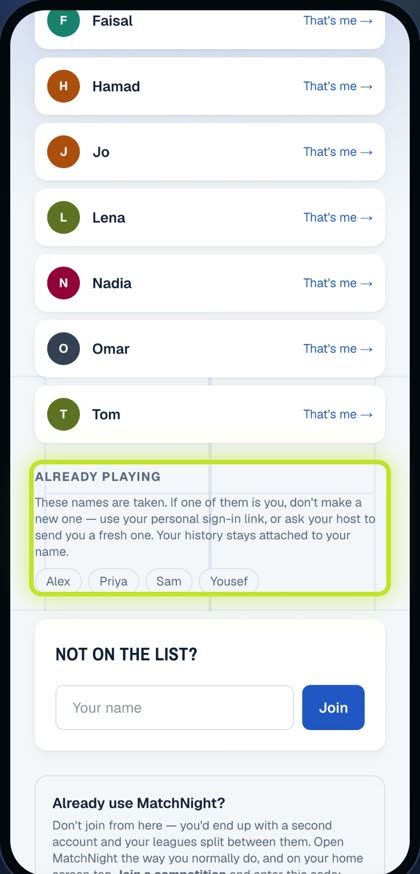
Name taken? Don't add it again
If your name is under Already playing, don't make a new one. Ask your organiser for your sign-in link.
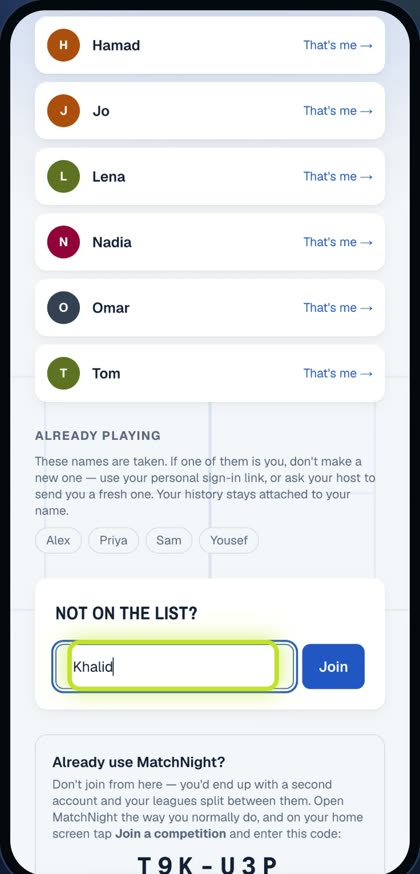
Not on the list? Start fresh
Not on the list? Type your name and tap Join. Your organiser will let you in.
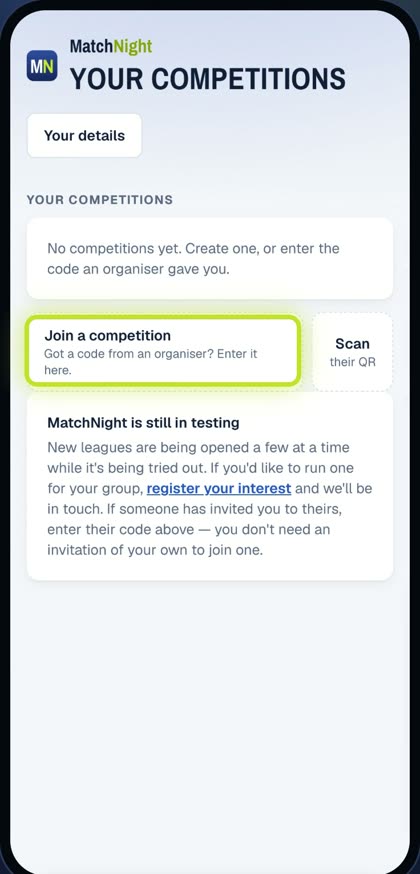
In the app already? Code or QR
Already use MatchNight? On your home screen, tap Join a competition, and enter the league code. Or tap Scan, and point your camera at the organiser's QR code.
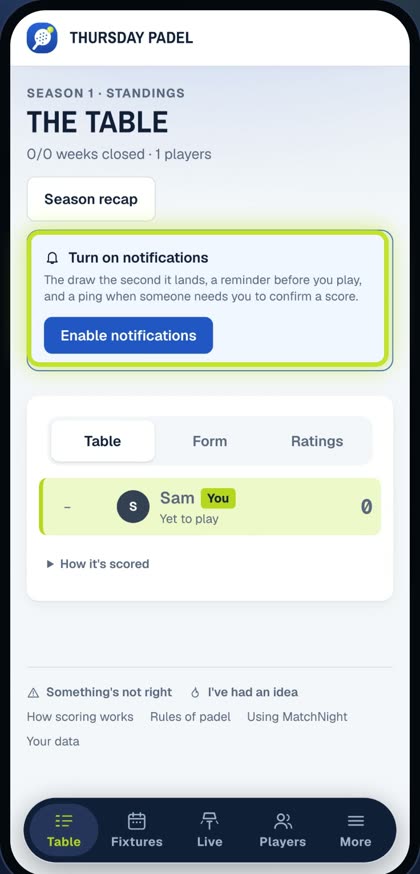
4 · Notifications on
Turn notifications on. That's how you hear about the draw, your court, and any last-minute changes.
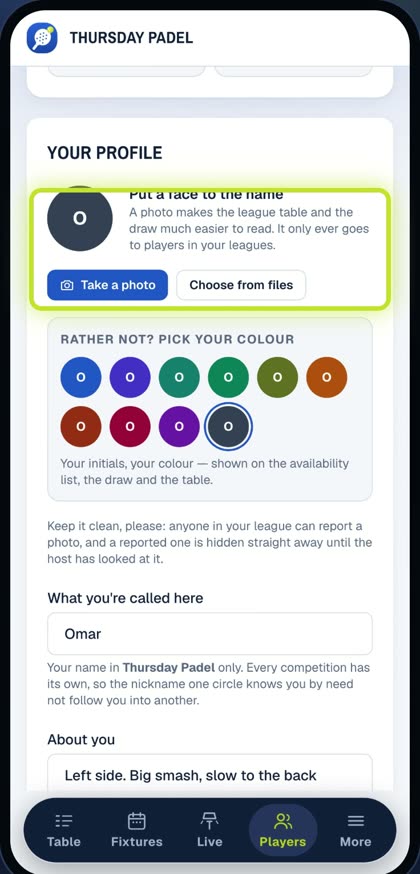
5 · Photo, quote and flag
Now make your profile yours. Add a photo, a line about yourself, and your flag.
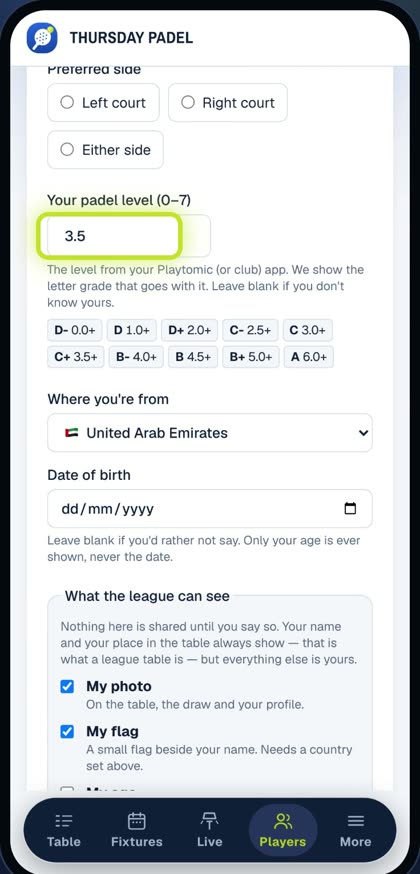
6 · Your padel level
Add your padel level, from zero to seven, the same number as on Playtomic. MatchNight shows the letter grade with it, so three point five is a C plus.
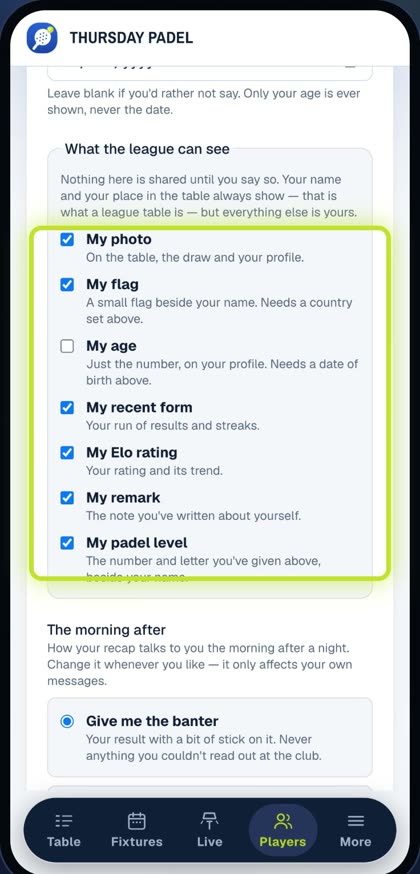
7 · What others see
You choose what the league can see. Sharing your photo, flag and level helps everyone find good partners, and fair games.
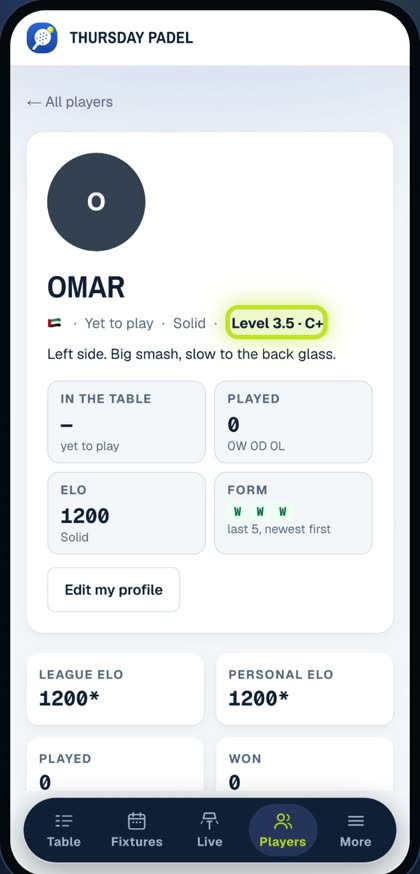
Your profile page
Your profile page shows your level, your results, your form, and who you've played with.
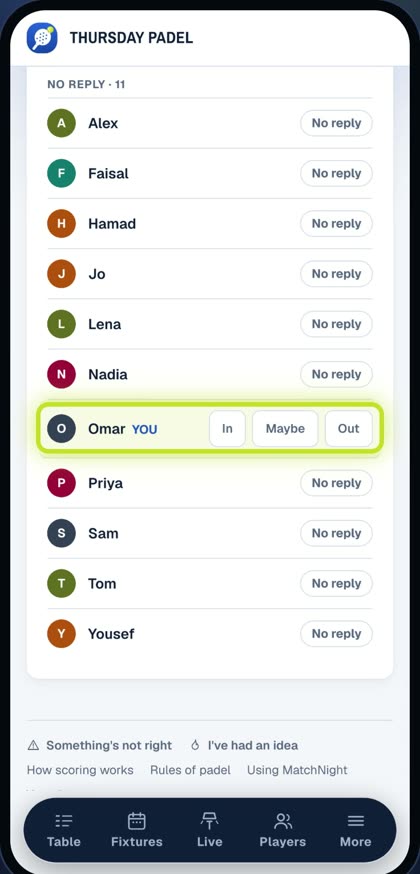
8 · In, Maybe or Out
Under Fixtures you'll find every night. Open one, and tap In, Maybe, or Out. The sooner you answer, the easier it is for your organiser.
9 · Confirm on the day
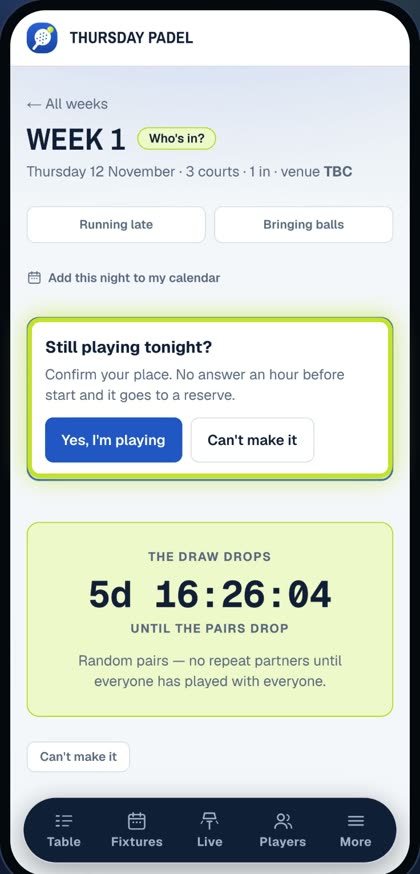
Your organiser may send reminders. On the day, you might be asked: still playing tonight? Tap Yes to keep your place, or it may go to a reserve.
10 · Share your night
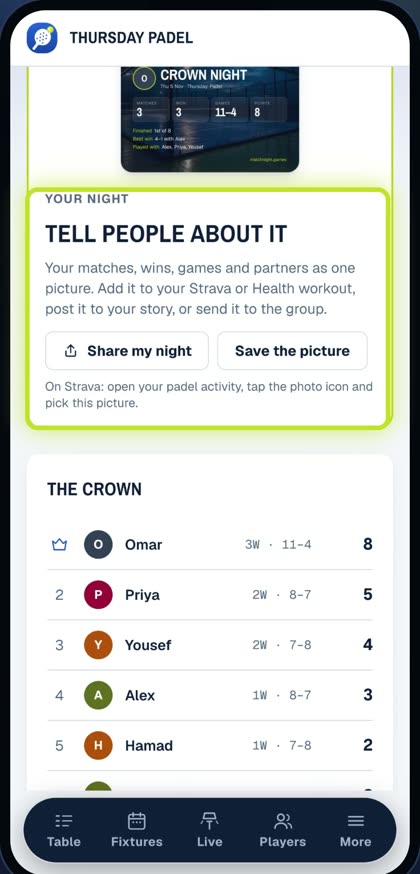
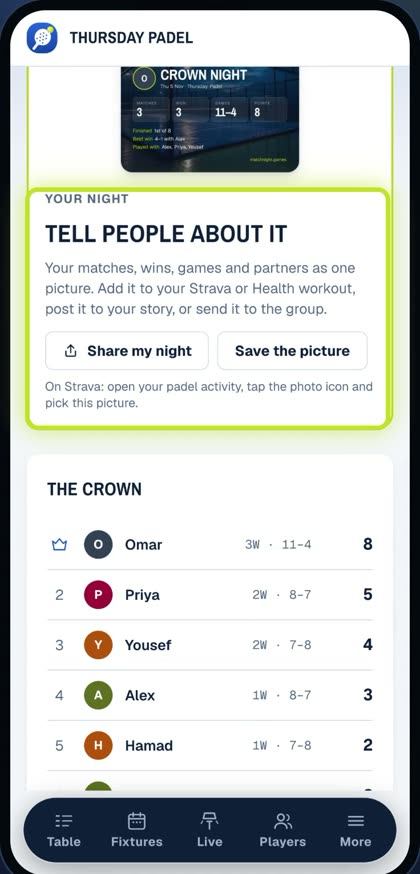
After the night, check the podium, then share your night to Strava, your story, or the group.
7 · Everyone
Your profile, privacy and notifications
Tap your name to open your profile, then Edit.
- Photo (or a colour for your initials), a short quote and your flag.
- Your padel level — the 0–7 number and its letter grade (for example 3.5 · C+). It helps the draw make fair games.
- What you share, competition by competition — photo, level, stats. Sharing makes the table and the night far more fun; you can show your Thursday league and not another.
Notifications
On the competition's home page, tap Enable notificationsand allow them on your phone. That's how you hear about the weekly “who's in?”, the draw, your court and scores to confirm. Without them you'll miss the 2-hour check and can lose your place.
What do other players see?
Your name, and only what you've chosen to share, plus your results, rating and form in that competition.
Step by step, with screenshotsShow ▾Hide ▴
1 · Open it
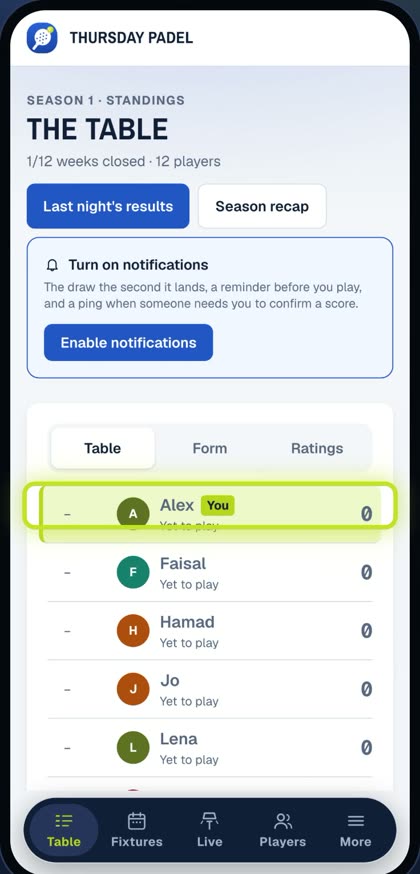
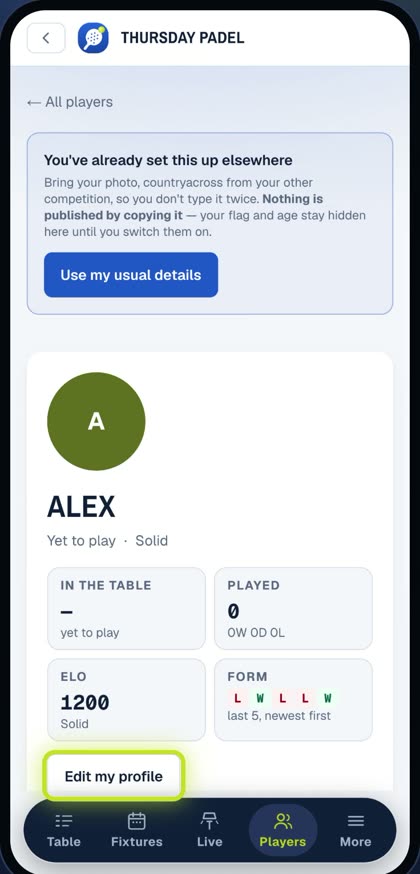
Tap your name in the table to open your profile. Then tap Edit my profile.
2 · You
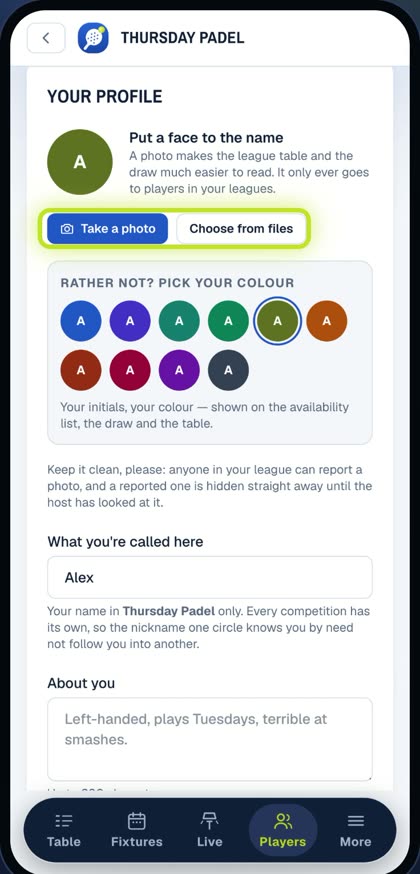
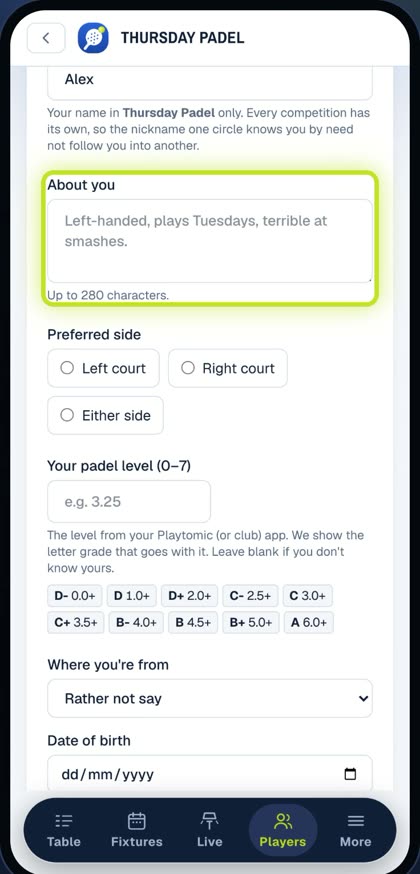
Add a photo. Rather not? Pick a colour for your initials instead. Write a short line about you, and say where you're from. That gives you a flag.
3 · Your level
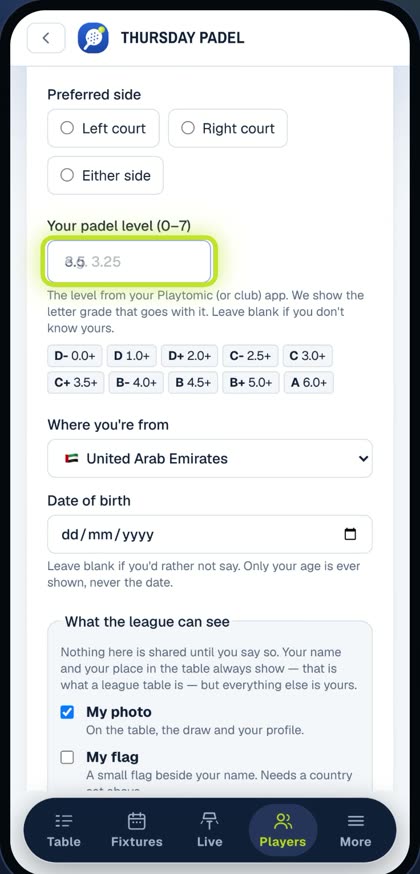
Add your padel level, the zero to seven number from Playtomic or your club. Three point five is a C plus. It helps the draw make fair games.
4 · What you share
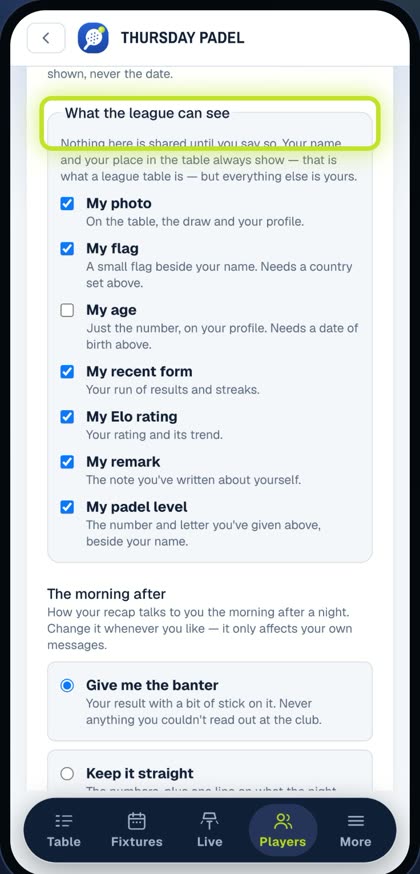
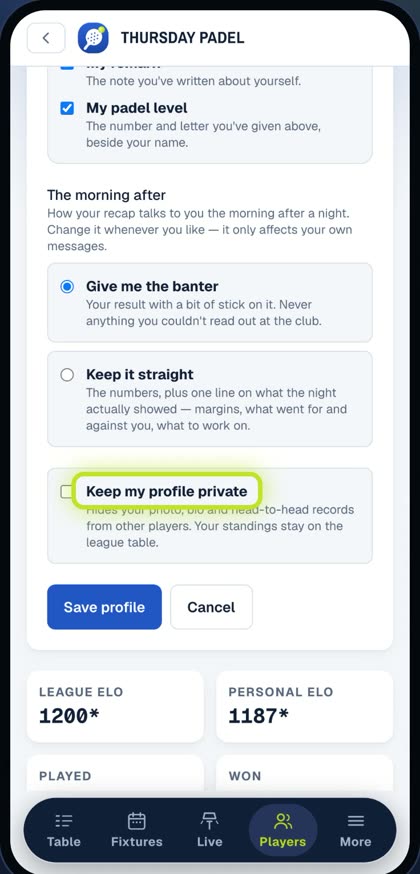
Nothing is shared until you say so. Tick what this competition can see: your photo, your flag, your form, your rating, your level. It's one competition at a time, so you can share with your Thursday league and not another. Or keep your profile private. Then tap Save profile.
5 · Notifications
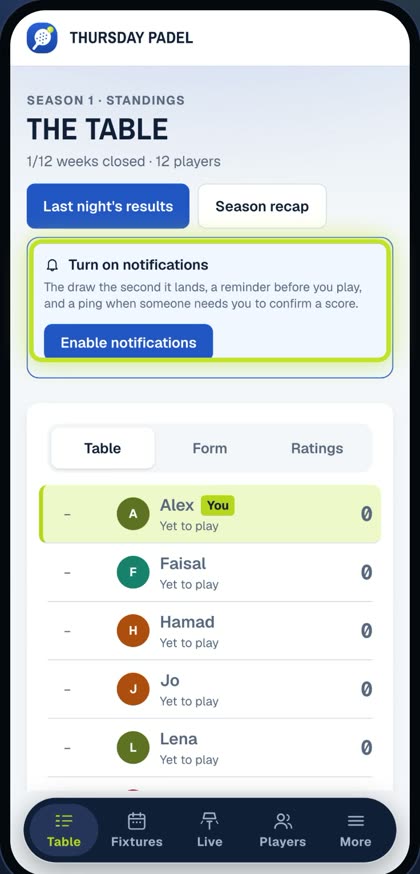
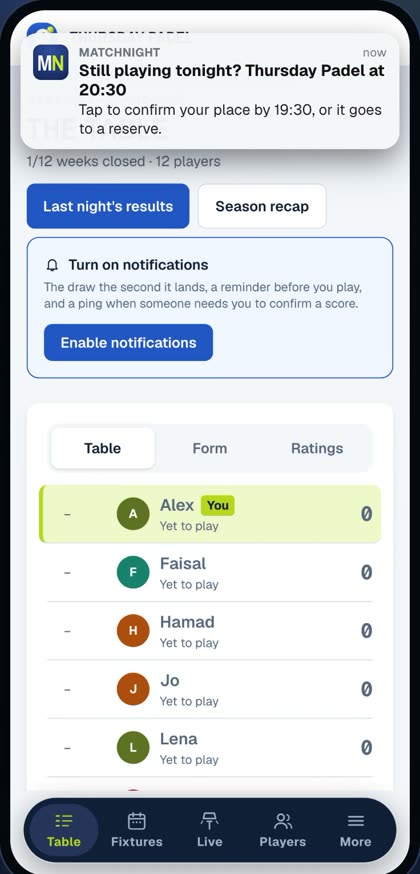
Next, notifications. On the competition's home page, tap Enable notifications, and allow them on your phone. That's how you hear about the weekly who's in, the draw, your court, and scores to confirm. Without them, you'll miss the two-hour check, and you could lose your place.
What others see
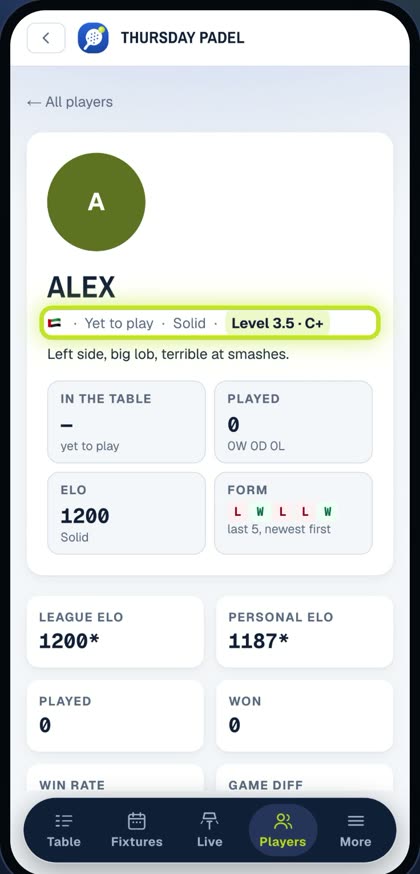
Other players see your name, your results, and only what you've chosen to share.
8 · Players
Saying you're in
Each week you're asked whether you're playing. Answer In, Maybe or Out on the notification or on your Fixtures.
- Start of the week (Monday morning by default): "Who's in?" goes out.
- Three days before: a nudge if you haven't answered.
- The day before: a last call to anyone silent or still on maybe.
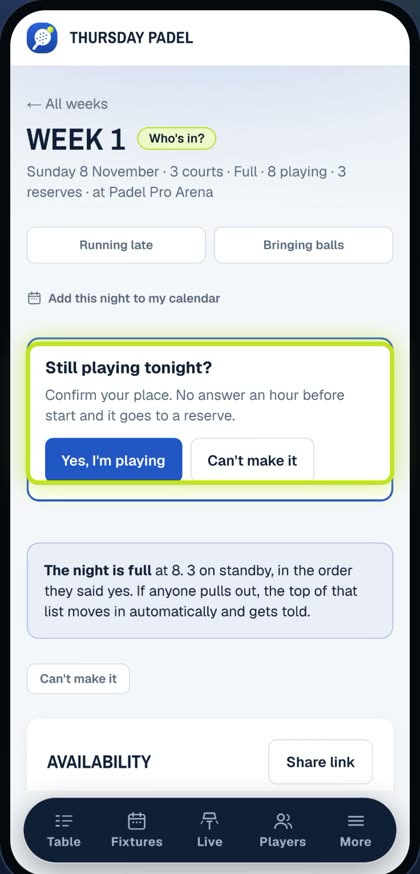
- Two hours before (if your organiser has it on): "Still playing tonight?" — confirm.
The 2-hour rule
If the check is on and you haven't confirmed an hour before start, your place goes to the first reserve and you're told. Can't make it? Tap Can't make it as early as you can so someone else gets the game.
Why does a maybe matter?
The draw can't be made around a maybe. Turn it into an In or an Out — the earlier the better for everyone.
I'm a reserve
You'll be moved up automatically if someone drops out, and get a notification when you are.
Step by step, with screenshotsShow ▾Hide ▴
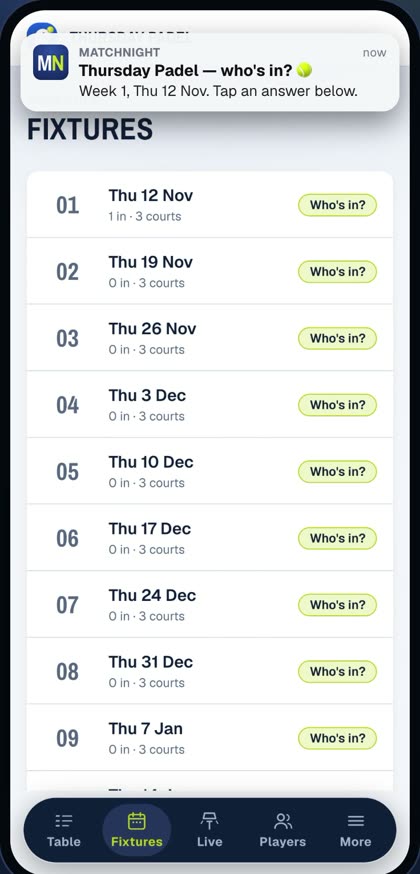
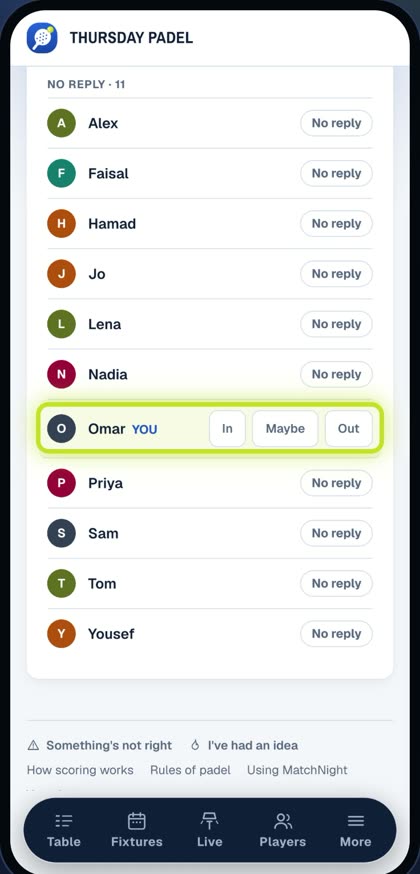
1 · Who's in?
At the start of the week, you get a notification: who's in? Tap In, Maybe or Out. Right there, or on your Fixtures.
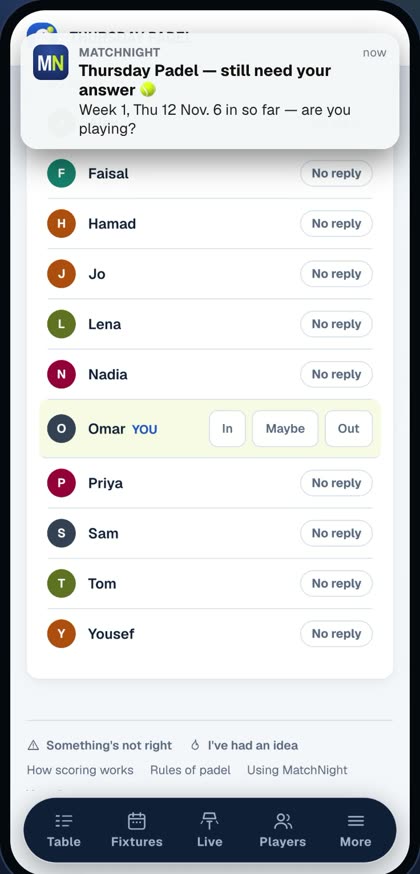
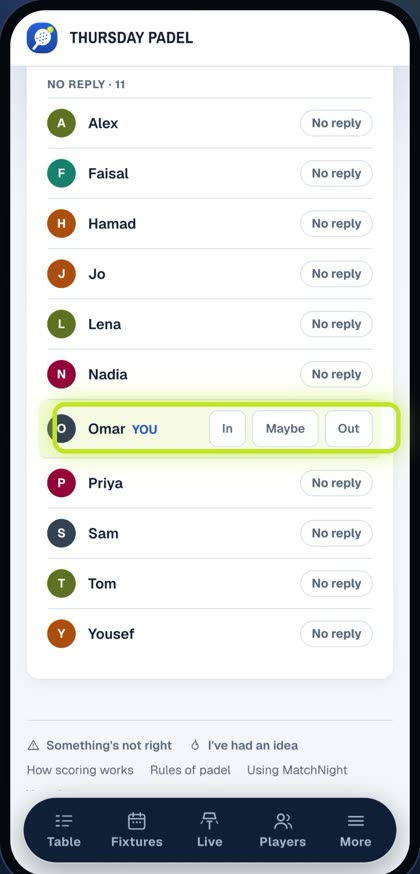
2 · Reminders
Not answered yet? You'll get a nudge three days before. On maybe? A last call the day before. Please turn a maybe into an in or an out. The draw can't be made around a maybe.
3 · Reserves
Night full? You go on the reserves, numbered. If someone drops out, you move up automatically, and you're told.
4 · The 2-hour check
On the day, two hours before the start, you may be asked: still playing tonight? Tap Yes, I'm playing. No answer an hour before the start, and your place goes to a reserve. Can't make it? Say so early, so someone else gets the game.
9 · Everyone
Scores, results and the table
Entering a score
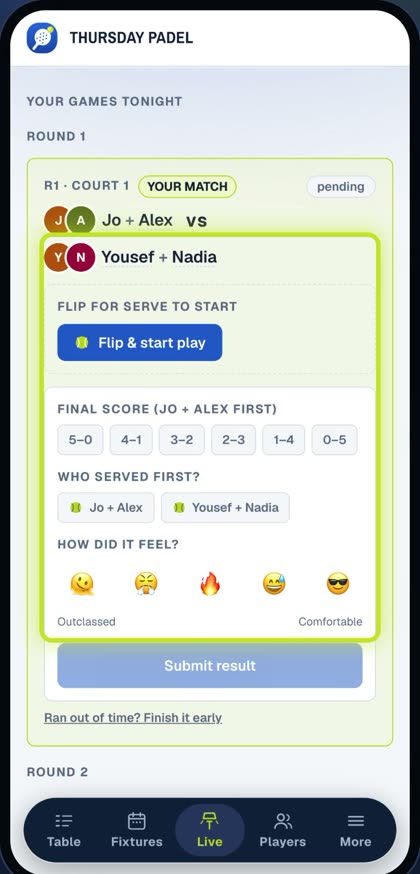
After your match, either pair taps the match on Live and enters the score.
Confirming or querying
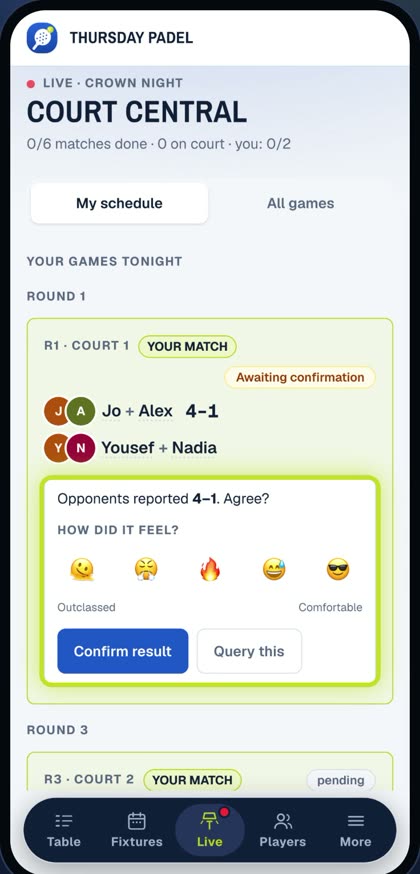
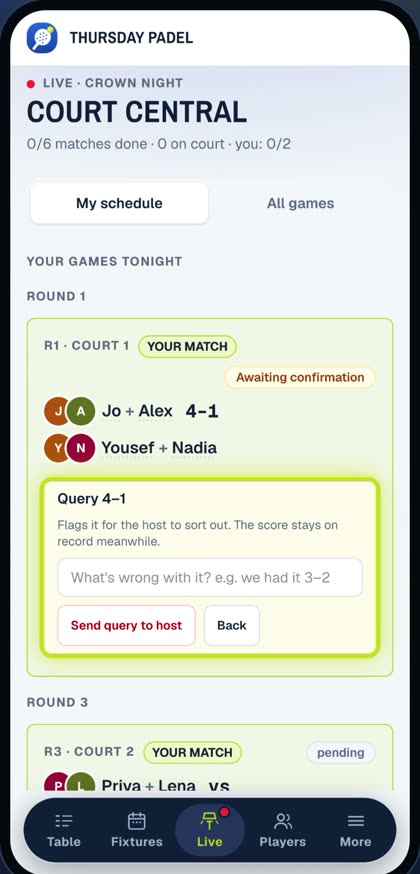
The other pair gets a notification: Confirm it, or Queryit if it's wrong. A queried score goes to the organiser.
The organiser has the last word
Organisers can set or correct any score outright, which clears a query. Scores they enter count straight away.
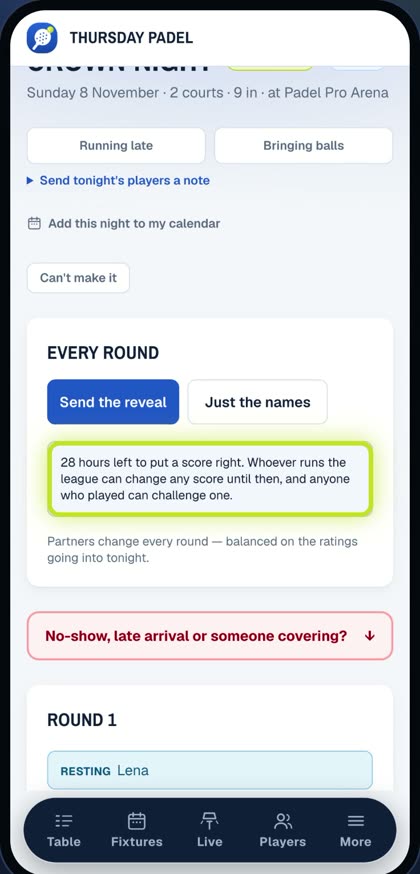
24 hours
Results can be entered or changed for 24 hours after play. After that the night closes on its own: unconfirmed scores stand, and the table, ratings and podium are final.
Seeing the table
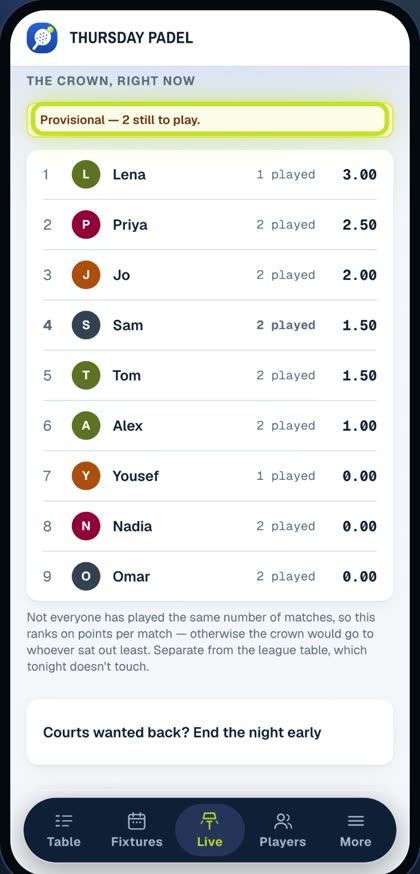
Liveshows courts and scores as they come in; the competition's home shows the table, and Crown nights end with a podium you can share on social media or Strava.
Step by step, with screenshotsShow ▾Hide ▴
1 · Enter the score
Open Live, find your match, and enter the score. Either pair can do it.
2 · Confirm or query
The other pair gets a notification. Confirm it, or query it if it's wrong. A queried score goes to the organiser, who has the last word, and can correct any score.
3 · 24 hours
Scores can be entered or changed for twenty-four hours. Then the night closes by itself, and the table, ratings and podium are final.
4 · The table
Watch it live as the scores come in: the courts, the table, and on a Crown night, the podium. Then share your night on social media, or Strava, straight from the podium.
Still stuck? Message us on WhatsApp — we usually reply within the hour.